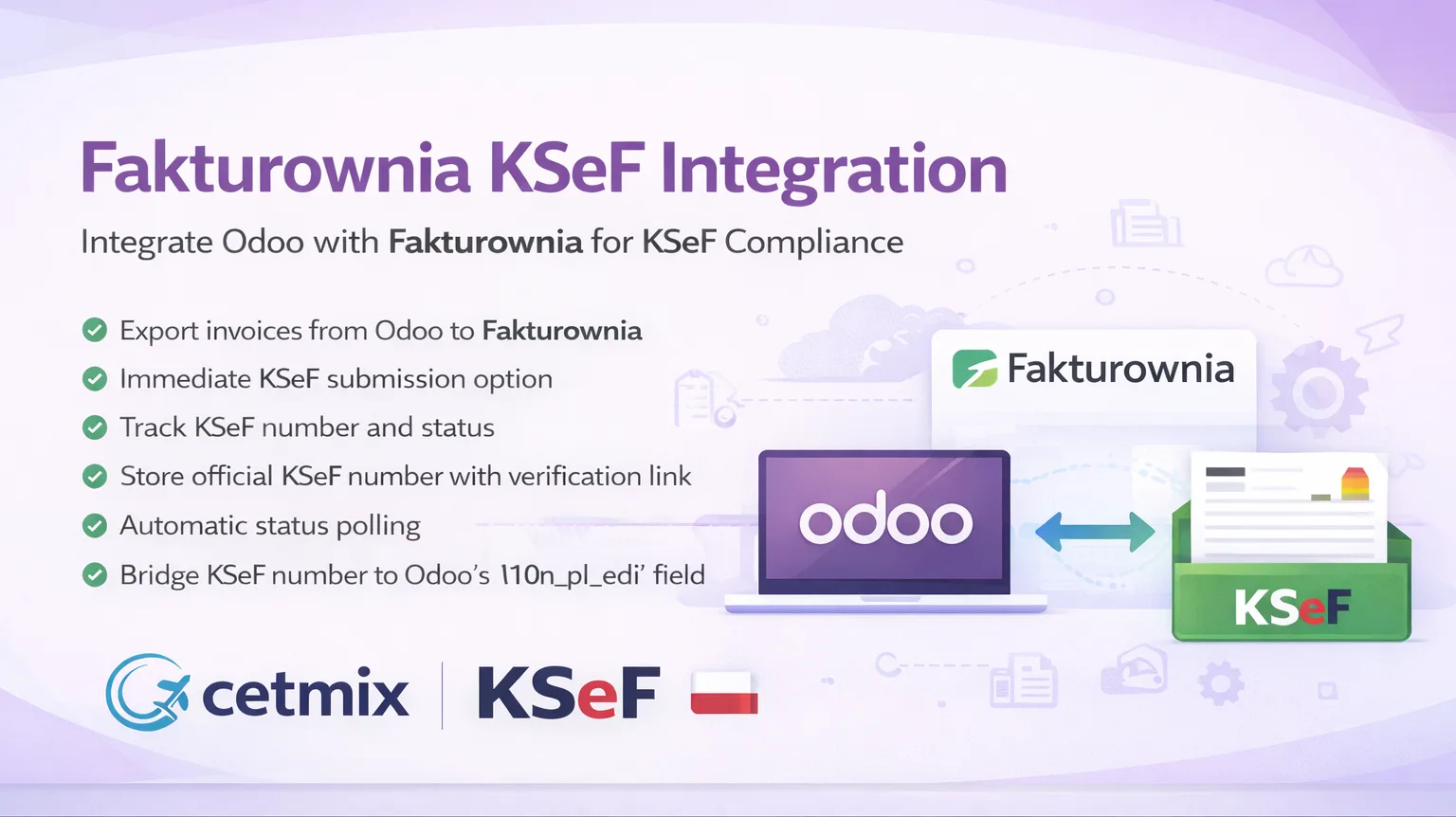
Odoo – Fakturownia Integration Setup (with KSeF support)
Odoo – Fakturownia Integration Setup
This guide explains how to configure the Odoo–Fakturownia integration module.
The module synchronizes invoices created in Odoo with Fakturownia and optionally submits them to the Krajowy System e-Faktur (KSeF).
This module is free - get it from the Odoo App Store(opens in new tab)
Once configured:
- invoices created in Odoo are automatically transferred to Fakturownia
- invoices can optionally be submitted to KSeF
- manual invoice entry is no longer required
Requirements
Before starting the configuration, make sure you have:
- an active Fakturownia account
- KSeF authorization enabled (if you plan to send invoices to KSeF)
- the Odoo–Fakturownia integration module installed in Odoo
Step 1 — Get Your Fakturownia Account URL
- Log in to Fakturownia
- Open Settings
- Click Account settings
- Find the Account name
Your account URL will look like https://your_company.fakturownia.pl
You will need this value during the Odoo configuration.
Step 2 — Generate an API Key in Fakturownia
- Open Settings
- Click API
- Click Show
- Add a new API token
- Name it for example
Odoo - Save the token
- Copy the generated API token This key allows Odoo to communicate with your Fakturownia account.
Step 3 — Configure the Integration in Odoo
In Odoo:
- Navigate to Invoicing / Accounting → Configuration → Settings
- Scroll to the Fakturownia section and configure the following fields.
API Key
Paste the API token created in Fakturownia.
Account URL
Paste your account URL, for example https://your_company.fakturownia.pl
Automatic Synchronization
Enable this option if you want invoices to be sent automatically when they are posted in Odoo.
Step 4 — Choose Invoice Number Source
The module allows you to decide which system controls invoice numbering.
Option 1 — Odoo
Odoo generates invoice numbers and sends them to Fakturownia.
Option 2 — Fakturownia
Fakturownia generates invoice numbers and synchronizes them back to Odoo.
Choose the option that best matches your accounting workflow.
Sending Invoices to KSeF
Each invoice in Odoo includes the option Send to KSeF immediately
Important details:
- invoices are sent to KSeF only if this option is selected
- the option is disabled by default
This allows users to control which invoices are transmitted to the national system.
Activate KSeF in Fakturownia
To enable KSeF:
- Go to Settings → Integrations and Add-ons
- Locate KSeF and click Activate
- Authenticate using one of the supported methods:
- qualified electronic signature
- trusted profile
- token
- Upload the required certificates
- Authorize your VAT ID (NIP)
- Choose sending mode (automatic or manual)
After activation, invoices sent from Odoo through Fakturownia can be submitted to KSeF.
How the Synchronization Works
After configuration:
- An invoice is created in Odoo
- The invoice is posted
- The invoice is automatically sent to Fakturownia
- If the KSeF option is enabled, the invoice is submitted to KSeF
Troubleshooting
Invoice not appearing in Fakturownia
Check that:
- the API key is correct
- the account URL is correct
- the invoice has been posted
- automatic synchronization is enabled
KSeF submission not working
Verify that:
- KSeF is activated in Fakturownia
- authentication certificates are uploaded
- the invoice has Send to KSeF immediately enabled
Need Help with Odoo or KSeF Integration?
Setting up ERP integrations and accounting workflows can sometimes require customization.
The Cetmix team specializes in Odoo engineering, including:
- Odoo implementations and migrations
- custom module development
- integrations with accounting systems
- infrastructure and DevOps for Odoo
If you need help with Odoo, Fakturownia, or KSeF, feel free to reach out.
👉 Got questions? Talk to us